
The chat panel
A tour of the task pane, the composer toolbar, and the cards the agent puts in front of you.
The task pane has four tabs and a composer. Everything else is a card the agent renders into the transcript.
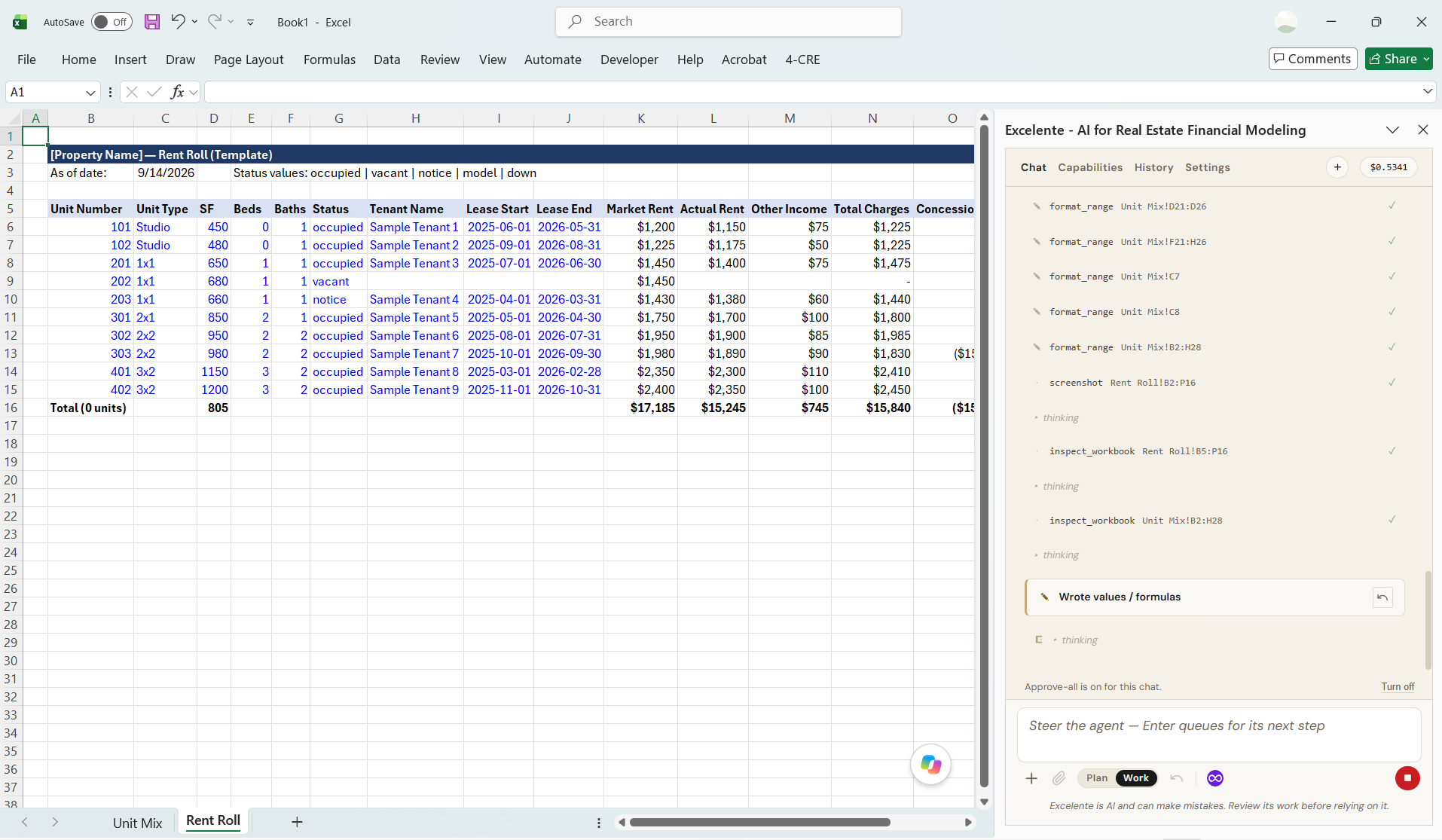
The four tabs#
| Tab | What lives there |
|---|---|
| Chat | The conversation, the composer, and every card |
| Capabilities | Skills and Connectors, the two things that extend what the agent can do |
| History | Saved conversations for this workbook |
| Settings | Your key, model, reasoning, pace, and build info |
Beside them, a New chat button saves the current conversation to History and opens a fresh one, and a small info popover shows your running session cost, the active model, reasoning level, prompt cache stats, and the build version.
The composer#
Type and press Enter. Shift+Enter gives you a newline.
The composer stays live while the agent runs. A message sent mid-run is queued and delivered at the agent's next tool boundary, which is how you redirect without stopping the build. The placeholder tells you which state you are in:
- Ask Excelente… (type / for commands and skills) when idle.
- Steer the agent. Enter queues for its next step while it works.
The toolbar#
Left to right under the text box:
| Control | What it does |
|---|---|
| + | Opens the connectors and skills popover |
| Paperclip | Attaches images, PDFs, or spreadsheets |
| Plan / Work | Switches mode. See Plan mode and Work mode |
| Undo | Reverts the most recent agent write |
| Connector marks | One per installed connector, click to toggle it on or off |
| Send / Stop | One button. It becomes Stop while a run is in flight |
The + menu#
Two sections, Connectors and Skills, each a list of toggles with a Manage → link that opens the Capabilities tab on that sub-tab. The popover stays open as you toggle, so you can set up a whole session in one visit. Escape or an outside click closes it.
Slash menu#
Typing / opens a filtered list of commands and skills together. Arrow keys navigate, Enter picks.
Choosing a command runs it; choosing a skill enables it for the conversation. See
Slash commands.
Selection chip#
Select more than one cell and a chip appears above the text box showing the range, which travels with your next message. See What the agent can see.
Cards in the transcript#
Tool lines#
One muted line per tool call: · for reads, ✎ for writes, the tool name, a short summary, and a
status. An auto badge means Excelente ran that call for you rather than the model requesting it,
which happens when a connector primes itself at the start of a conversation.
Tasks#
An informal checklist the agent maintains during longer work, marked ✓ done, ▶ in progress, ○
pending. Separate from a plan, and not something you approve.
Approval and change cards#
Covered in Approvals and undo.
Plan pill#
A submitted plan, pinned above the scroll so progress stays visible. Click to open it.
Questions from the agent#
When the agent needs a decision it cannot infer, it asks with a card rather than guessing. Questions are paginated one at a time, since stacked questions pushed Submit below the fold in a pane this narrow. Options are radio buttons or checkboxes, with a free-text field for anything not listed. Skip is always available.
Spreadsheet decision#
Dropping an Excel file asks how to handle it, insert as worksheets or read as text. See Attachments.
Skill proposal#
After /skillify, or when the agent notices a reusable workflow, it proposes a skill with its
description, when-to-use, body, and references laid out for review. Install skill saves it,
Dismiss drops it. See Write your own skill.
Continue Working#
Appears when a run ends with work apparently left over, saying why it stopped. See How the agent works.
Attaching files#
Click the paperclip, paste an image directly, or drag files anywhere onto the chat panel. The drop
overlay reads Drop to attach. Accepted: .png, .jpg, .jpeg, .webp, .gif, .pdf,
.xlsx, .xlsm, .xls, .xlsb, .csv.
The footer line#
Excelente is AI and can make mistakes. Review its work before relying on it.
That line is always visible, and it is meant literally. The agent verifies its own work and a Reviewer checks it, and neither of those is a substitute for you reading the model before you send it to an investment committee.